


.png)
If you regularly fly the same survey missions, you don’t need to create a new mission every time.
Skylink lets you set up a mission once and choose when you want it to repeat. You can run it daily, weekly, monthly or on multiple selected days of the week, and either let it continue indefinitely or set an end date.
This is particularly useful when your team wants the same data at a consistent time and frequency.
This video shows you how it works:
How to schedule a repeat mission
- From the SkyLink home screen, open the Go for Launch page.
- Select the location and mission type, then click Next.
- On the mission setup screen, choose the date you want the first mission to run.
- Turn on Repeat Mission on the right-hand side.
- Select your target time.
- Choose how often you want the mission to repeat, such as daily, weekly or monthly.
- For weekly missions, select the days you want the mission to run. You can choose multiple days.
- Choose how long you want the schedule to continue. You can let it run indefinitely, finish on a set date or stop after a set number of missions.
- Open the map and draw the mission area or add the required pins.
- Enter your survey parameters on the left, then click Confirm.
- Give the mission a clear name and add any relevant tags. You can also leave comments for the pilot if they need any extra information.
- Click Submit Mission.
Note: If your repeat mission clashes with another scheduled flight, SkyLink will warn you that there is a conflict. Go back and choose another date or time.
A few things to think about when setting up repeat missions
Schedule the flight for when the information is useful.
If you use panoramas in a morning planning meeting, schedule the flight so the latest images are ready beforehand. If you review stockpile volumes on a particular day, time the repeat survey around that workflow.
Keep the mission setup consistent if you want to compare results over time.
If you’re tracking construction progress, wall movement, stockpile volumes or changes along the same asset, keep the survey area and parameters consistent from one flight to the next. For panorama comparisons, similar capture times can also make the images easier to compare because the lighting is more consistent.
Use repeat missions for the routine checks, then add extra flights when you need them.
A pipeline might have a scheduled weekly inspection, but if pressure suddenly drops you can still launch an on-demand flight. The same applies to water levels after heavy rain or any other situation where the regular schedule no longer gives you enough information.
Use an end date for temporary work.
If you only need repeat flights during a construction project, shutdown or short monitoring period you can set the schedule to stop automatically when the job is finished.
Give repeat missions clear names.
Once you have several recurring jobs in SkyLink, simple names make the schedule much easier to follow. You can also add tags to label things more clearly.
Common repeat missions our customers schedule
Daily panoramas
This is one of the most common repeat missions we see.
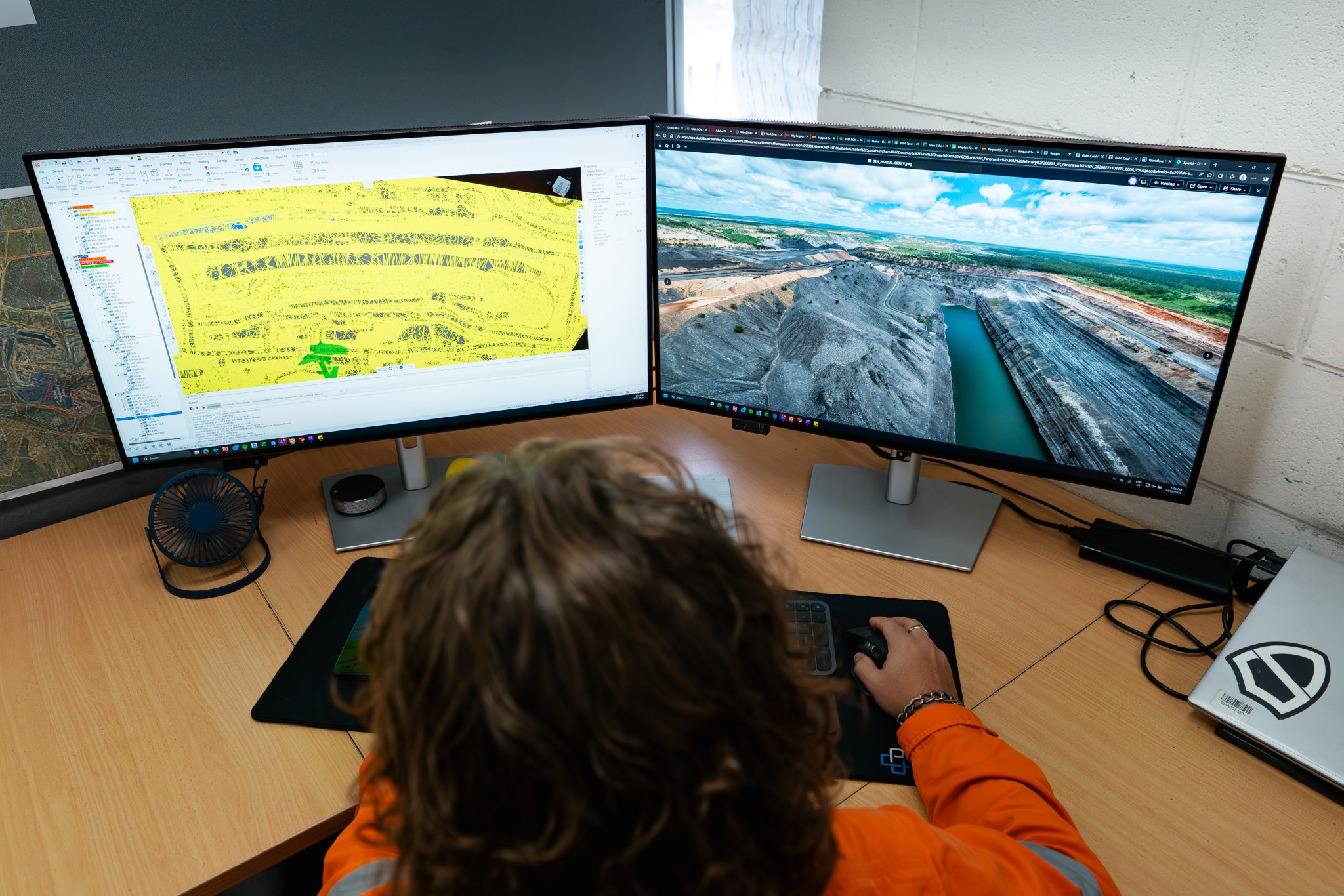
Most sites capture a 360° panorama every morning so they have a current view of the pit ready for planning meetings. Others run them more than once a day where conditions change quickly.
Because SkyLink runs the same mission on a set schedule, you also build a consistent visual history in SiteTube. That makes it easy to compare today with yesterday, or go back several weeks when you want to understand when something changed.
Stockpile and earthworks surveys
You can also repeat surveys where you need updated volumes on a regular basis.
Some mines survey ROM stockpiles every day so they have fresh volumes each morning. Others only need them weekly or monthly.
The same approach works for earthworks and construction projects. Repeat the same survey area throughout the job and you can track how much material has been moved or placed as the work progresses.
.png)
Geotechnical wall monitoring
At a number of mines, the geotech team captures high-resolution pit wall imagery every day and runs detailed wall mapping flights several times a week.
That gives them current imagery to review each day, as well as a history they can go back through if they notice movement or another change in the wall.
This kind of workflow is difficult to maintain manually because of the amount of survey time it would take. With repeat missions, the imagery simply arrives at the frequency the geotech team needs.
Tailings and water monitoring
Repeat missions also work well anywhere teams want to keep an eye on changing water conditions or tailings areas.
At one site, the team uses regular flights around its tailings storage facility to check conditions, monitor the decant area and support volume measurements. Other customers schedule water-level checks once or twice a week around remote pits and other areas they monitor regularly.
You can still add extra flights after heavy rain or when conditions change. The repeat mission just gives you the regular baseline.
Asset inspections
If you inspect the same asset or route regularly, you can put that flight on a repeat schedule too.
Pipelines are a good example. Some sites run the same inspection daily or weekly so the team gets a regular visual check along the line.
If something changes between scheduled inspections, such as a sudden pressure drop, you can still launch an on-demand flight straight away. The repeat mission handles the routine checks; on-demand flights cover the exceptions.
.png)

.webp)
.png)