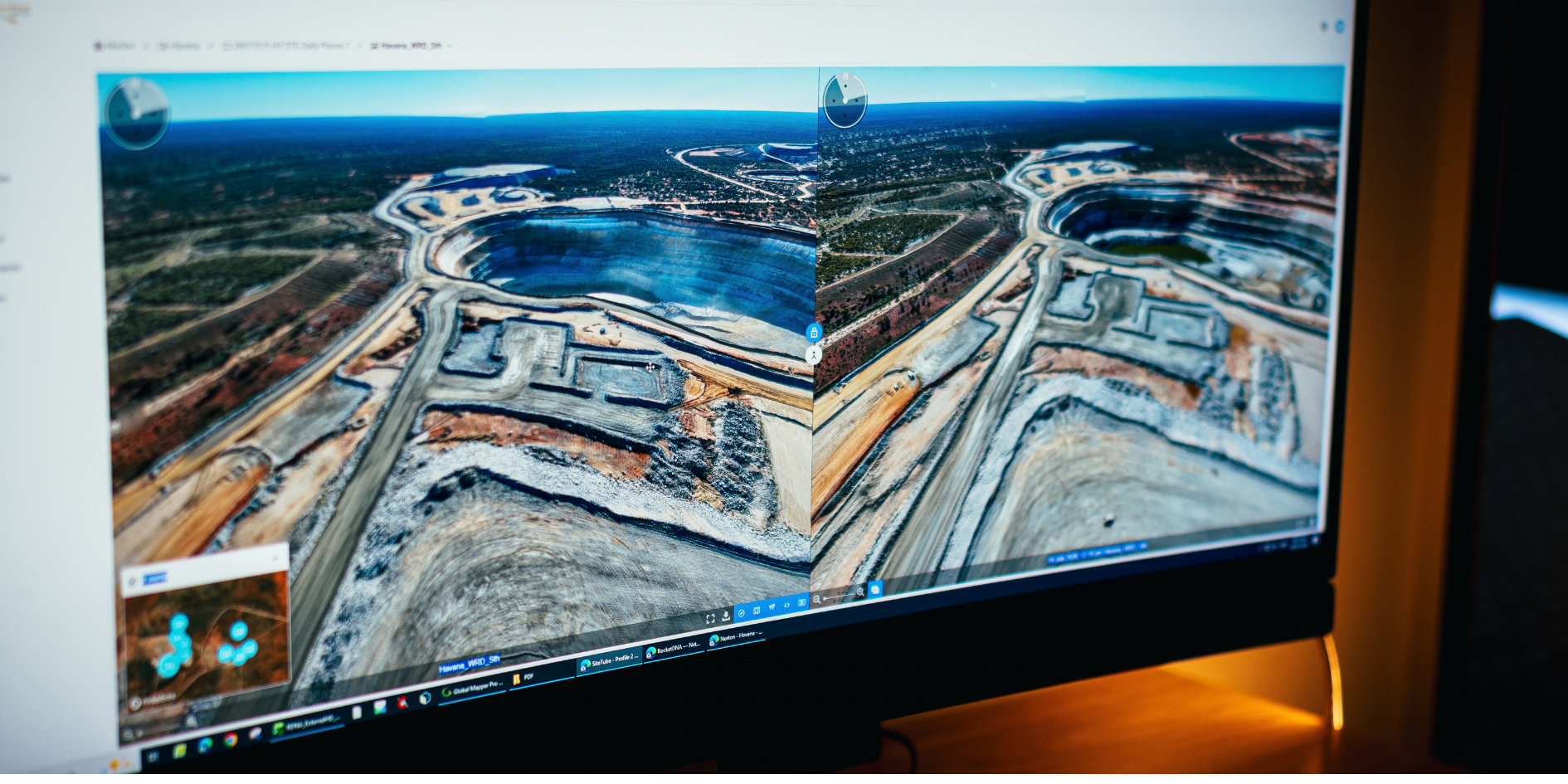
Most of our customers use their xBot to capture daily 360° panoramas of their pit and other locations across the mine site.
SiteTube’s side-by-side view lets you pull up today’s panorama next to yesterday’s, or any previous date, and compare the same area directly.
You can use it in a daily planning meeting to check what has changed since yesterday, compare construction progress over the past week, or go back several weeks when you notice a change in the pit wall and want to see how and when it started.
It’s simple to use. This video shows you exactly how it works:
- Open the panorama you want to use as your starting point.
- Click the compare button in the bottom-right corner.
- Use the arrows to scroll through the panorama thumbnails. Each image is labelled by date.
- Select the panorama you want to compare against. SiteTube will open the two images in a split screen view.
- Click the align button to match the two images up.
- Once they are aligned, click the lock button. This keeps both views locked at the same position and angle.
- If the images are slightly out of alignment, you can unlock them, adjust the image manually and lock them again.
- To compare another date, just click the gallery button and select another panorama. Once the views are locked and aligned, SiteTube keeps the same position as you move through different dates.
That makes it easy to work backwards or forwards through the history of an area without having to line the images up again each time.
Ways other mines are using this
There are so many situations where it’s useful to compare yesterday’s panorama with today’s.
Our customers use it to check progress on earthworks, see recent changes around a working area, check road conditions, monitor stockpiles, and compare water levels after a weather event, among other things.
In morning planning meetings, it’s helpful for everyone to look at yesterday’s pit images next to new ones from this morning. Everyone can see exactly what’s happened and use it as a quick visual reference to discuss any issues.
Look back when something changes in a pit wall
Lots of geotechnical teams we work with capture high-resolution images of their pit walls every day.
If they spot movement or another change, they can go back through previous images in SiteTube and look at the same section of wall from a week or two earlier.
Sometimes that lets them see that a change had already started, even though it was too small to stand out at the time. It gives them more complete information to work with, alongside detailed 3D models of the same area.
Compare construction progress
At another mine, daily panoramas are used during tailings dam expansions to keep a visual record of construction progress.
The team can pull up different dates side by side and see how work on the wall has progressed over a day, a week or longer.
They also fly regular survey missions to measure the earthworks and calculate how much material has been placed.
Without the xBot, fitting that frequency of extra flights around the site survey team’s normal operational work would be difficult. The automated panoramas give the project team a consistent visual record without creating another daily survey task.
.png)
Investigate when something doesn’t go to plan
On a busy mine, there are times where things go wrong or aren’t executed according to the plan. If you have a library of daily images, it makes it easier to investigate and see what actually happened. One example of this was at one site when a blast didn’t fire as expected. When the team later dug into the area, they found a section of hard rock that hadn’t been blasted properly.
They used their daily panoramas in SiteTube to look back through the days leading up to the blast and noticed a pipe left on the crest that was supposed to have been moved before drilling started, which had stopped part of the area from being drilled properly.
Instead of relying on different recollections of what had happened, the team could go back through the site history and see the sequence for themselves.
Build up a useful history
When your xBot is already capturing panoramas every day, it doesn’t take long to build up weeks and months of site history.
That history becomes useful whenever someone asks a simple question like: What did this area look like last week? When did this change start? How much progress have we made since the start of the month?
With the side-by-side view, you can pull up the dates you need, line them up and have a look.

.png)